

StayControl Setup Guide
From your account to a working device. Follow these seven steps for a StayControl installation, then check the readings and notification settings in the space you have configured.
The seven setup stepsChoose the mounting position and check power and Wi-Fi before connecting the device.
Read Installation Recommendations-
Create your account access
Open the MasterMind platform and choose New account. Enter the requested account details, then check your inbox for the account confirmation email. Use your account credentials to sign in.
Keep the account credentials available for the remaining steps. If you already have an account, use that account rather than creating a second one.
Open the MasterMind platform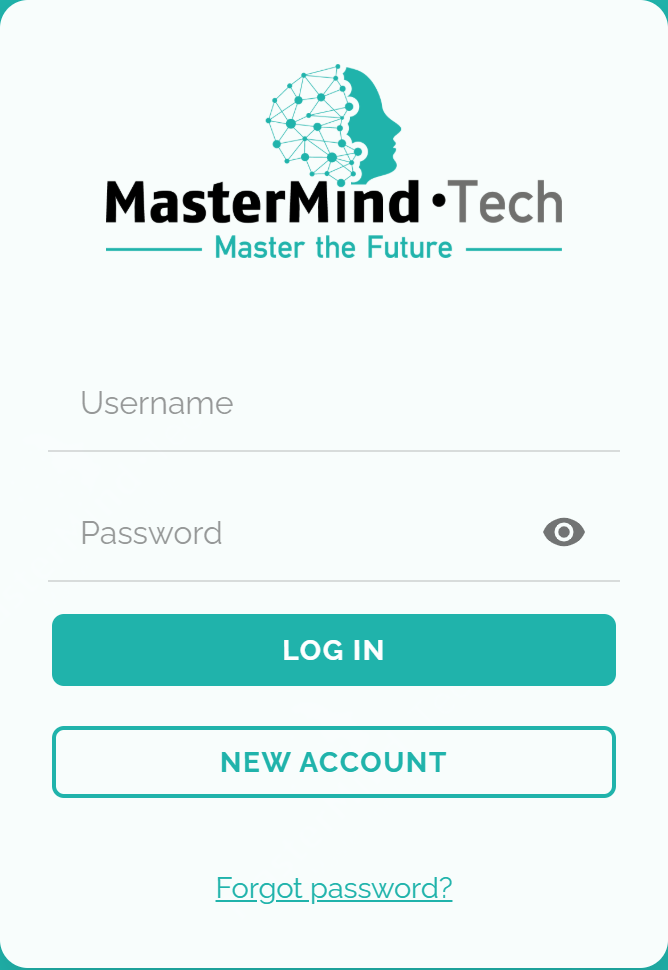
Account access: choose New account to register. -
Connect your PMS or channel manager, if needed
In the platform, open the menu and choose Integrations Centre, then New Integration. Select the supported provider and enter the details requested for that connection.
This step is relevant when you want supported booking or guest context. Available data and actions depend on the provider, permissions and configured connection. A provider's presence in the integrations overview does not guarantee every workflow or field.
See the integrations overview -
Create or import your spaces
Open the spaces area using the house icon and choose Add Space. Create a space manually, or use the import option when your configured integration supports it.
Enter the requested space information and maximum occupancy, then add the space. Use a clear name so that you can identify the room or property when assigning devices and reviewing notifications. Check the imported information rather than assuming that every provider supplies the same fields.
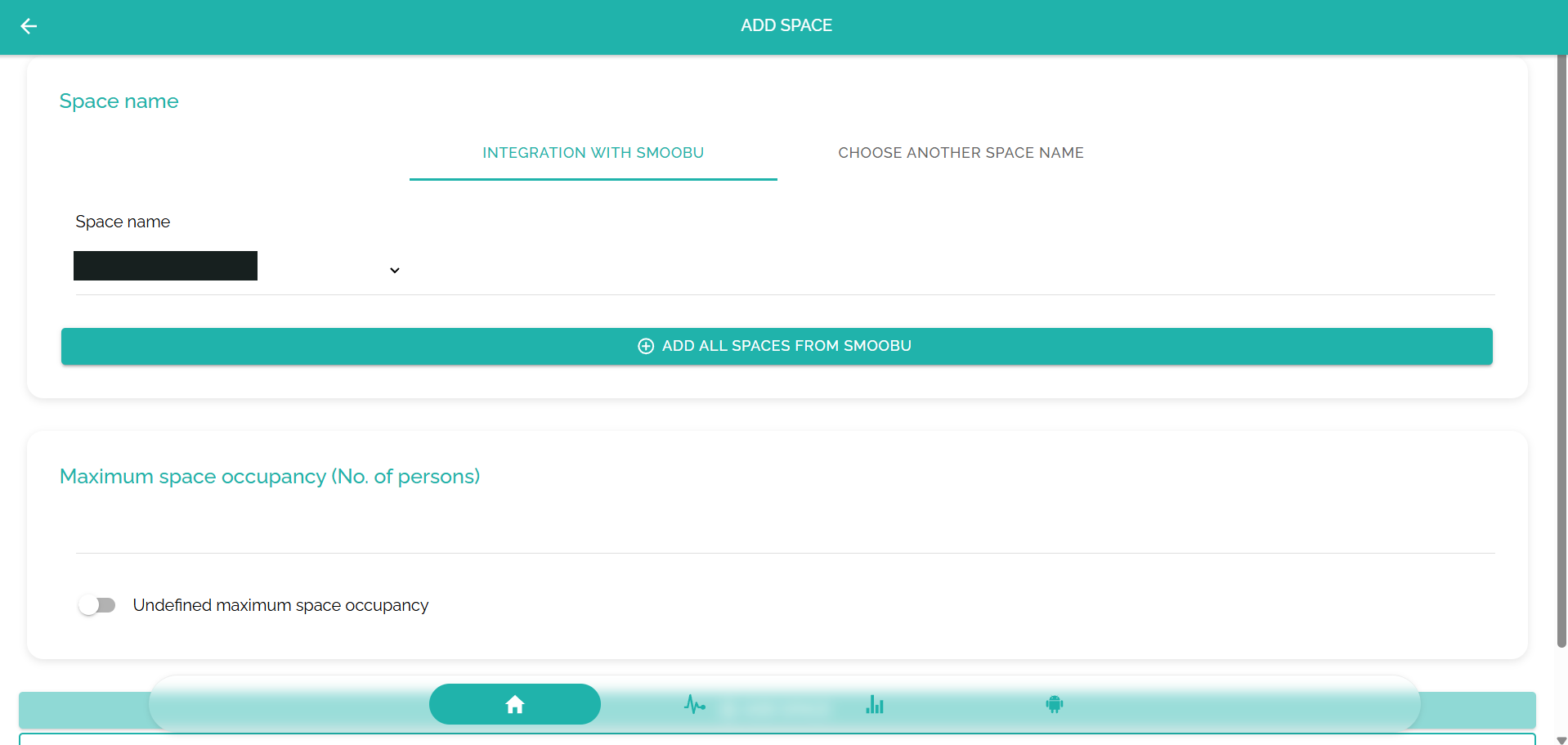
Add Space: choose the supported import or a manual name, then set the maximum occupancy. -
Connect StayControl to Wi-Fi
Connect StayControl to its supplied power source. On your smartphone or computer, join the temporary Wi-Fi network identifying the device, for example MasterMind · Tech StayControl. Open the setup portal and copy the displayed serial number before proceeding.
Choose Configure WiFi, select the property's compatible 2.4 GHz Wi-Fi network, enter the password and save. Check the connection result. After a successful connection, the temporary network disappears and the device begins measuring.
If the setup portal does not open automatically, try another smartphone or computer. If the connection fails, check the password, the available 2.4 GHz network and signal at the actual mounting position before trying again.
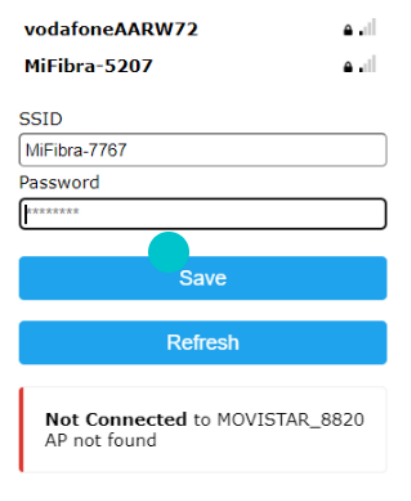
Select your Wi-Fi network and save. Not Connected means the attempt has not succeeded. 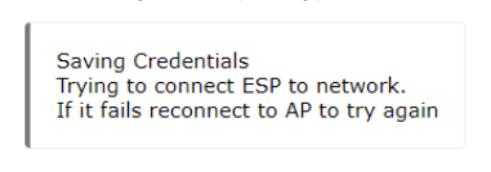
Saving credentials starts a connection attempt; this message is not confirmation of success. -
Add the device to its space
Return to the space you created or imported. Choose Add a device in this sublevel, give the device a recognizable name and paste the serial number copied from its setup portal.
Choose Search device in the system. The platform checks the device and displays the available notification choices when the checks succeed. Select the notifications you need and choose Add device. Confirm that the device appears in the intended space.
If the device cannot be found, recheck the copied serial number and Wi-Fi connection. Do not assign it to a different space simply to bypass an unresolved setup problem.
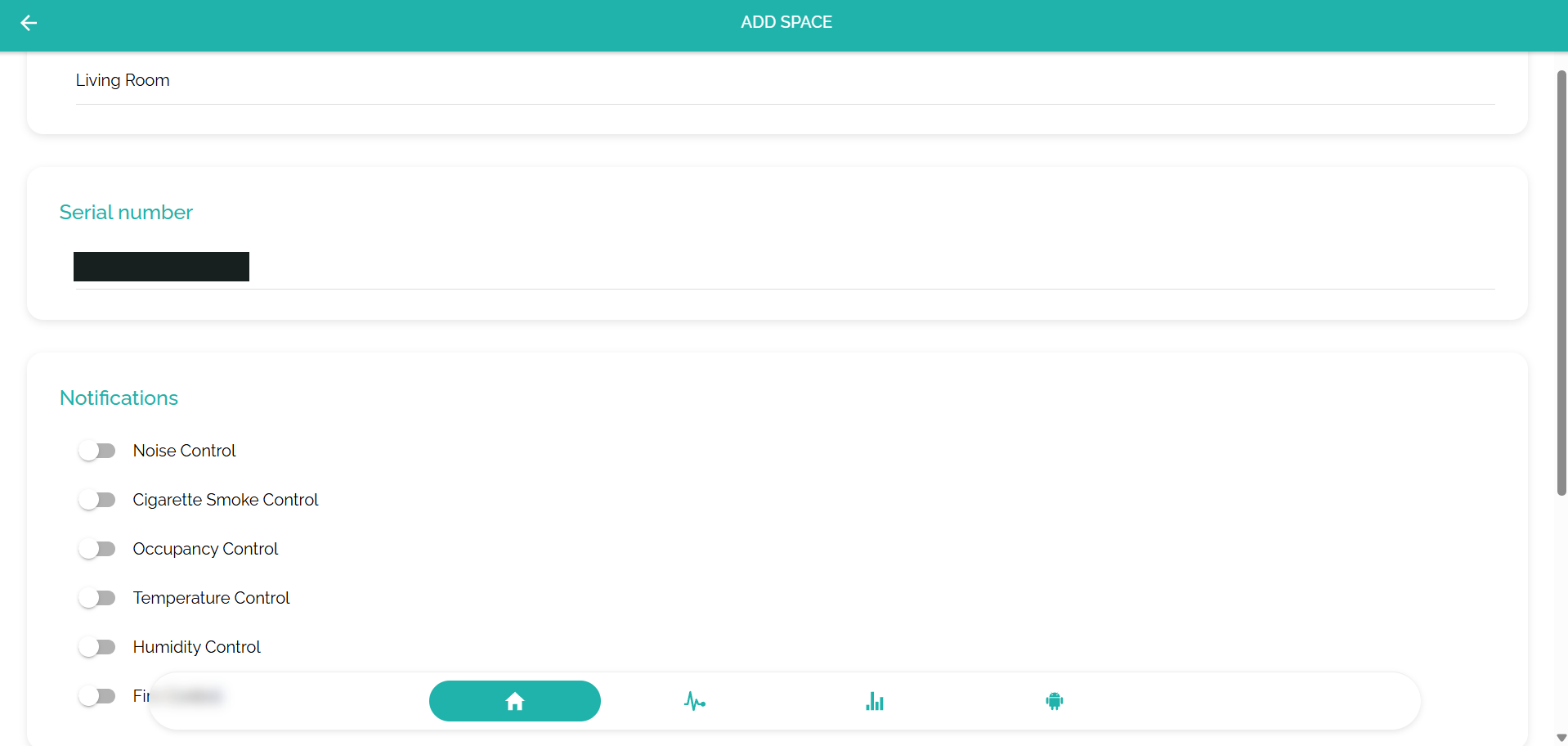
Device assignment: use your own serial number and select the required notifications. -
Configure the monitoring and response settings
Use the device's gear icon to open its configuration. Select the monitoring parameter, such as noise or cigarette smoke, and review the available settings for that parameter.
Set appropriate day/night triggers and notification recipients for the property's operating rules. Review the device name and any configured incident fee information. A setting in the platform does not itself establish a right to charge a guest.
Where StayAssist is enabled, configure the intended Incident Mediation workflow and contact path. Guest contact depends on available context, supported channels and workflow configuration; it is not an automatic consequence of adding the hardware.
Explore Incident Mediation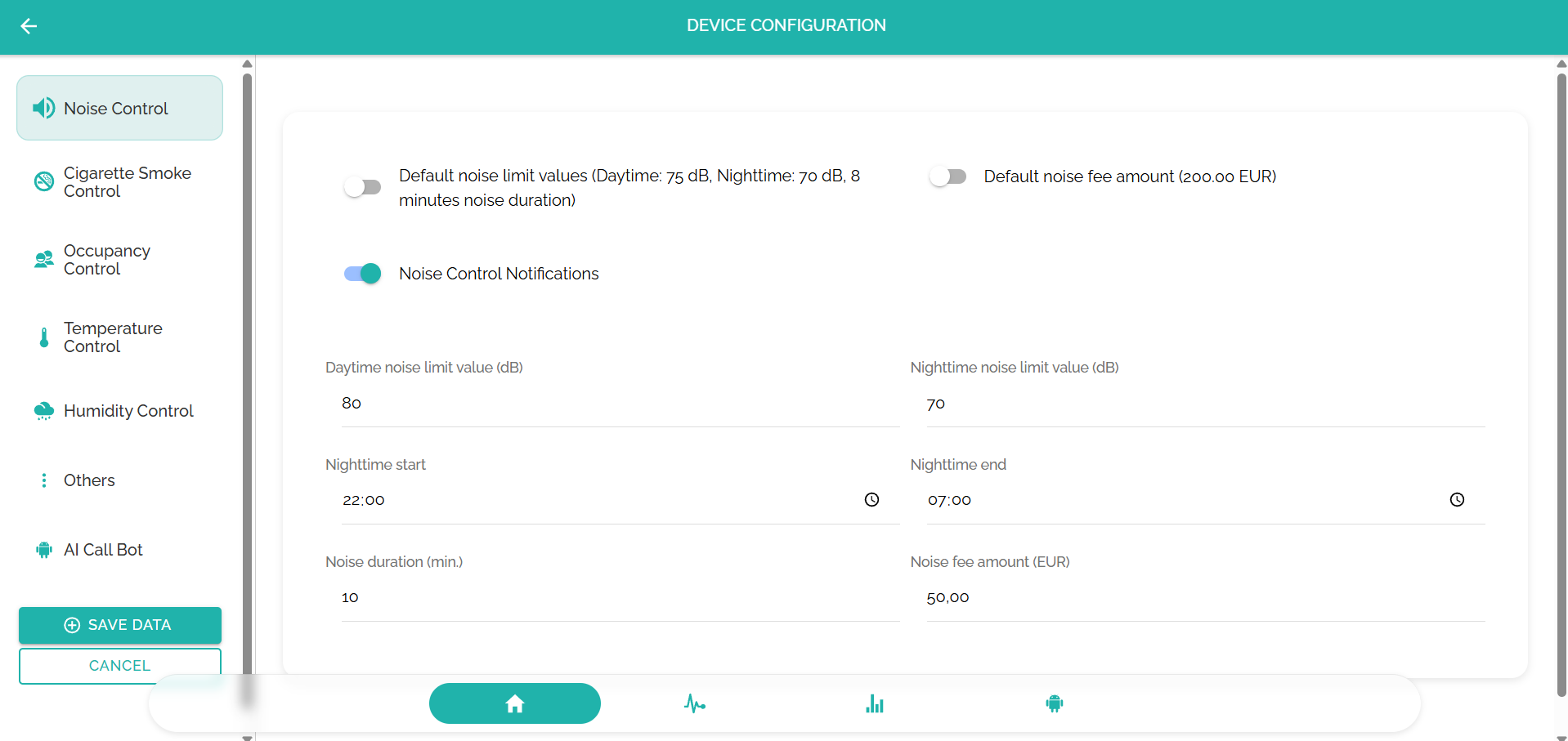
Select a monitoring parameter and review its settings. The shown thresholds and fee amounts are examples, not recommendations. -
Confirm the device is operational
Check that the assigned device is online and reporting readings in the correct space. Review the notification selections and recipients, and confirm that the configured response matches your team responsibilities.
Check occupancy context against a known quiet baseline and remember that occupancy is an estimate, not exact person counting. Booking or guest association requires the relevant connected data; it is not guaranteed by installation alone.
Explore the platform's user management, notifications, statistics and configuration areas as needed. Keep the device powered and connected, and revisit the settings when the room layout, Wi-Fi network or operating rules change.
Need help with your installation?
Online guidance and setup support are free. Email support with the device reference, affected space and the step you could not complete. Never include passwords or guest personal data.